
Navigation
Motion control
Movement Gizmo
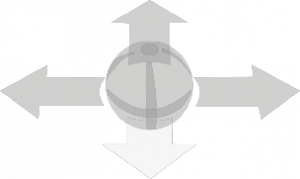
Click on the direction arrows with the left mouse button to move forwards, backwards or sideways, for example. If you keep the mouse button pressed, you move continuously in the selected direction.
To change the viewing angle in space, click the “trackball” with the left mouse button. Hold down the mouse button and move the mouse in the desired direction of view.
Alternatively, you can change the viewing direction by holding down the mouse wheel and moving the mouse.
Movement via keyboard
You can also move around the room using the keyboard. Use the “WASD” keys to do this.
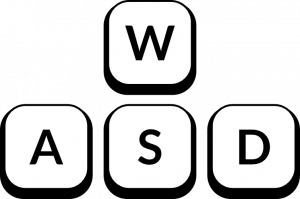
To move around the room faster, you can also hold down the Shift key.

Note:
Pressing the space bar always aligns your gaze with the horizon axis.
Movement via mouse only
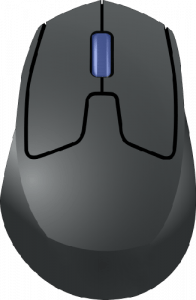
Alternatively, you can move around the virtual space using only the mouse.
To move forward, scroll forward with the mouse wheel. If you turn the mouse wheel backwards, you move backwards.
Note:
If you double-click on the floor with the left mouse button, you will automatically move to this position.
Navigation
Editing views
The exhibition rooms can be viewed in different views.
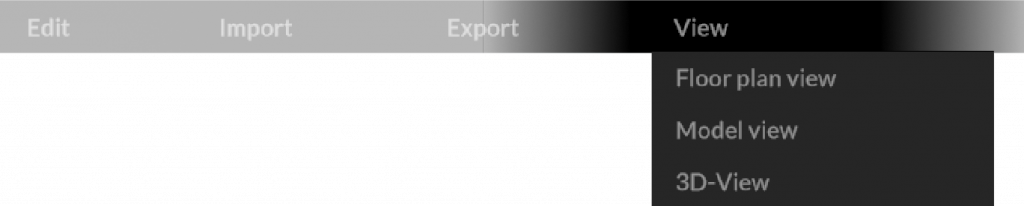
The different views help you place exhibits and position yourself in the room as easily as possible. You can switch views using the “View Menu” or the “Toolbar”.

Note:
When you open the application, you always start in the 3D view.
Floor plan view
The floor plan view is great when you want to place 3D exhibits in the room or quickly move to another room. If you want to change the floor, click on the corresponding architecture overview icon at the bottom left.
Model view

In the model view, you can check the positioning and effect of the exhibits from different perspectives and perform a quick pre-placement of the exhibits across multiple rooms.
By keeping the scroll wheel pressed and moving the mouse at the same time, the model can be rotated. Also in this view you can show and hide the floors with the architecture overview icon.
3D view
The 3D view is the default view and is used for interaction in the room and with the exhibits. Work images can be placed on the walls or on the floor via drag & drop. This view helps you evaluate the works in the virtual exhibition space and make hanging and placement optimizations.
Note:
In all three views, the exhibits can be placed and moved using drag & drop. Double-click on the floor of the showrooms to return to the 3D view and automatically move to the highlighted location.