Background:
Unity has discovered a security vulnerability that affects games and applications created with Unity versions 2017.1 and later.
Affected platforms are Android, Windows, macOS and Linux.
There is no evidence that the vulnerability has been exploited and no users or customers have been affected to date.
Unity immediately released security updates to address the issue.
Important information for you:
To date, there are no known cases in which this vulnerability has actually been exploited.
- Microsoft has updated Defender so that the current version recognizes and blocks this vulnerability.
- The vulnerability published by Unity affects the runtime-integrated components that become active when a Unity application is started (e.g. engine libraries, resource loaders, native plugins, etc.)
- As long as the application is not running, i.e. not actively running or open, the vulnerability cannot be exploited because the faulty code is not active in memory.
Solution:
- ) We are working hard to provide you with the latest version of our software (2.3.45).
Please understand that this may take a few days, as we have to recompile, test and roll out all of our customers’ instances at the same time. We will inform you as soon as an updated installer is available in your customer directory. - ) In the meantime, you can close the security gap with a patch published by Unity. Please proceed as follows:
Windows
(administration authorization is mandatory)
1) Download the following zip file here:
1) Unzip the zip file.
2) Right-click on the UnitApplicationPatch.exe file and select: Run as administrator.
3) Select Windows on the left.
4) Click on Application DLL Path and select the cura3D museum pro application file in the Programs (x86) directory. Click on Open.
5) Then click on Patch.
6) At the end you should see Patch Results: Success.
macOS
(administration authorization is mandatory)
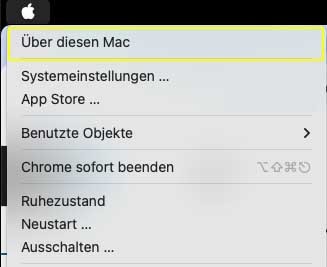
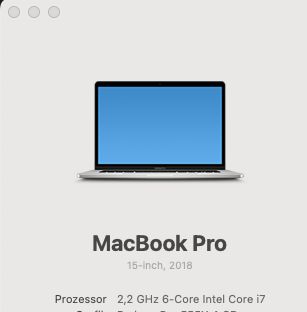
Please first select the correct version according to the CPU you have installed.
(Click on the Apple icon at the top left -> About this Mac
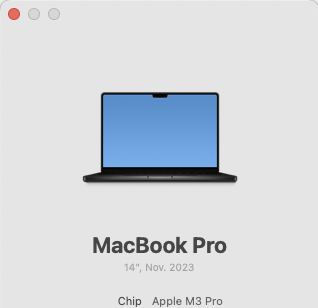
1) For ARM processors (M1, M2, M3, M4)
1) Download the zip file into the download directory
2) Unzip the zip file in the download directory
3) Open the terminal (⌘ + space bar) -> Enter terminal
4.) First enter the following command:
cd Downloads/UnityApplicationPatcher-1.1.1-macOS-Arm64
5.) enter the following command:
sudo ./UnityApplicationPatcher.app/Contents/MacOS/Unity\ Application\ Patcher
6.) Enter your (administration) password
7.) In the ApplicationPatcher that now opens, select macOS on the left-hand side
8.) Go to the application directory and select your cura3D application.
9.) Then click on “Patch”.
10.) You should now be able to read “Patch successful”.
2) For Intel processors
1) Download the zip file into the download directory
2) Unzip the zip file in the download directory
3) Open the terminal (⌘ + space bar) -> Enter terminal
4.) First enter the following command:
cd Downloads/UnityApplicationPatcher-1.1.1-macOS-x64
5.) enter the following command:
sudo ./UnityApplicationPatcher.app/Contents/MacOS/Unity\ Application\ Patcher
6.) Enter your (administration) password
7.) In the ApplicationPatcher that now opens, select macOS on the left-hand side
8.) Go to the application directory and select your cura3D application.
9.) Then click on “Patch”.
10.) You should now be able to read “Patch successful”.